Z War Hive and Territory Manager
- 23 Sep, 2026
The Z-War tool is designed to make running a Dark War Survival Alliance easier to manage. If you’ve served as an R5 or R4 running a busy, active alliance, you’ll know how time-consuming it can be. This tool will make that easier.
Please NOTE: this is a BETA release and has some known and probably some unknown bugs! I’m a hobby coder and blogger, so please be patient; feel free to comment and give feedback on the Discord channel. I’m actively working to tidy things up, improve the phone interface and make things easier to use.
Here’s the link to the tool: Z-War Alliance Tool
Functions
Inside the tool are a Hive Manager, Territory Manager, Event Management and Scheduling. These are supported by Discord bots and custom reports to post into the game or your own Discord channel without the bots.
During testing, a lot of questions about data came up. The tool doesn’t require emails, passwords, or player IDs, so no sensitive data is at risk- a very deliberate decision. This changes how some features work. Your local saves are your responsibility; as long as you don’t add emails, player IDs or anything you wouldn’t post publicly to the import files, it’s all good. Cloud saves use end-to-end encryption and generate your own access codes; make sure you save those. If your code expires or you lose it, snapshots are deleted after 7 days. Simply save another copy for a new code.
Hive Layout Tool
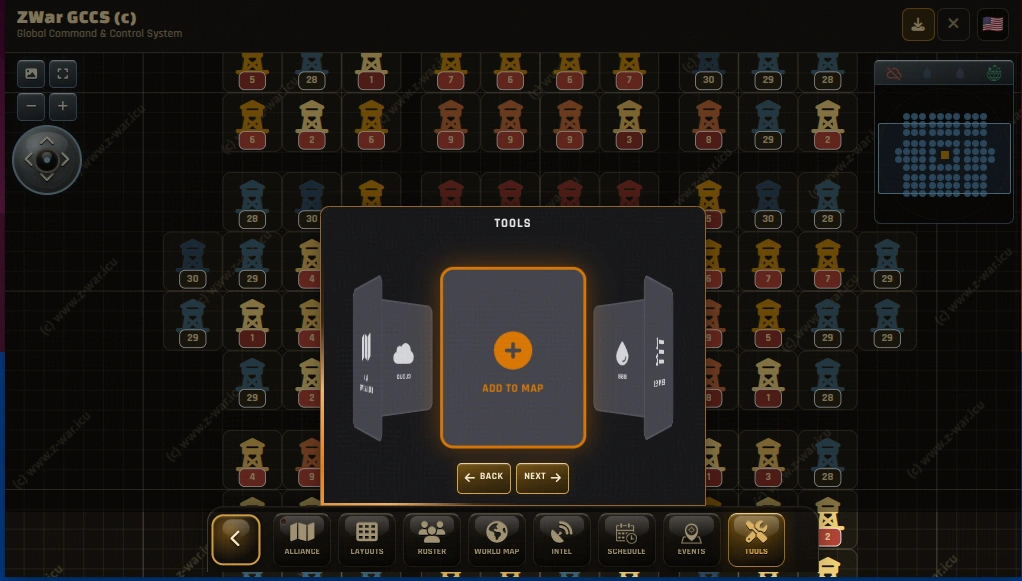
There is a brief intro on the first run to explain the functions and the order to work in to get the most out of the tool. The key to this is having your roster of players. You can add them manually through Tools - Add-to-Map
This will open a menu to add players one by one - which, in a large alliance, will get tedious for sure. The best option is to make your own CSV (comma-separated values file) with Player Name, CP, Level (1-30, i1 to i10) and import that quickly. Even better than this is a Google Sheets direct import - just paste the link. If you make a Google Sheets doc, get your players to input their own info - this means much less work for you. If your members aren’t that engaged, then the entries can be completed across the team of R4/R5s. The result is a list that’s quick to import.
Alliance Member Screenshot Reader
There is now a custom-built OCR Screenshot reader tool to make this easier! You can now take a bunch of screenshots, scan them and get back a file of your players with the CP score ready to import into your own spreadsheets or directly into the Z-War tool. There’s a link to the tool and a full guide below.
Dark War Survival Alliance Members Import tool
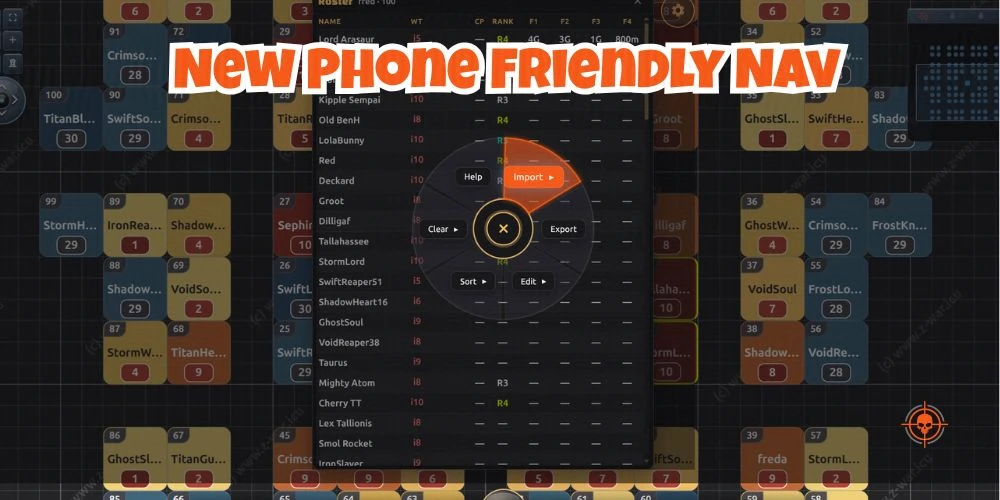
The above list is a sample file uploaded; if your name is there, it’s an AI fluke! You can see the options to add a Google Sheets link, and also the import and export functions - these are for CSV and JSON files. There is some “intelligence” built into the importing tools, but if you have suggestions, join the Discord and make a suggestion: Z-War Discord
.webp)
New Functions Added
Feedback from the community is one of the best ways to develop and tweak features. Users get the things they need to make life as an alliance leader a little easier… mostly !
Waterkater on Discord asked about a sort of function - Id been doing this outside of the app, but why? lets add this to app and make things simpler for all users. So the new sort feature includes sort by Player CP, Rank, Watchtower level, Name and by FI power.
.webp)
Collating & Updating Info
Things change and you will have a few players growing fast, so you may not want to create new uploads every few days. Inline editing allows you to update the few players that will be growing fast and who you want to track.
.webp)
Hive Manager
The question most asked is “What the $%@# do I need a hive tool for ?” Well, you don’t. You don’t NEED the advantages it brings, and it won’t make the game any less…well, not that much less.
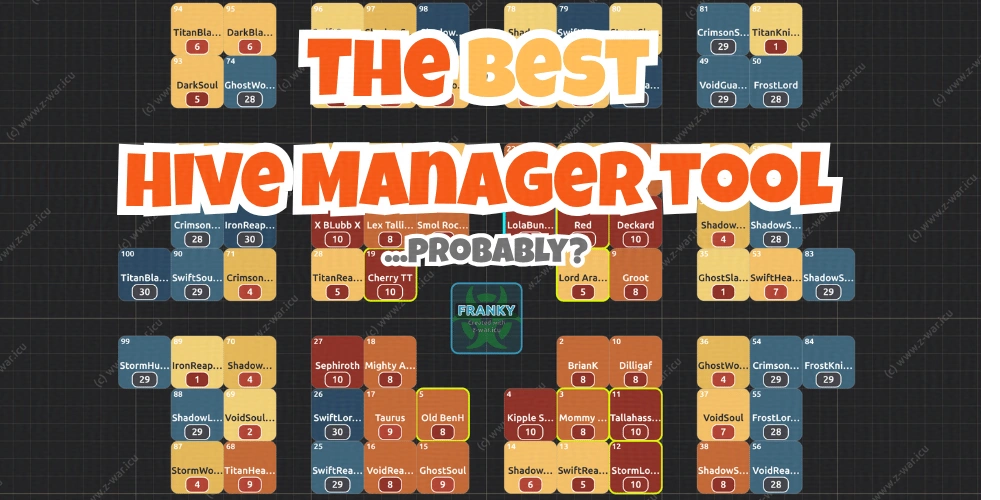
In simple terms, the game mechanics create spawn sites for a variety of tasks - Radar, Gathering, Zombie Dogs and Boomers (as well as season-type Boomers). If you don’t leave any spaces, then all these spawn on the outside of the hive. The most common is the closely packed side-by-side type. There are always the randoms that look like they ported drunk, though, right?!
You may not be aware that 1 space isn’t enough for Boomers to spawn, though it appears to only hold one tile. Without two tiles being free, it won’t spawn. So it follows that the most efficient layout would have as many two-space channels as possible. You will need to join the Z-War Discord for the template file - or practice and copy it!
So the best layout is this one…
Just take note - getting players into specific locations can be hard work if they’re not used to lining up or “sliding” prior to porting. You also need to make members understand “Bookmarking” e.g., once in place, bookmark your spot so you can find it easily after events.
.webp)
Why Boomer Spawns Make A Difference
The reasons to spawn boomers inside the hive and generally close to your own base are twofold. The first is speed: when you have to do upwards of 10 a session (remember those season 6 Shrine tasks - 40!), if you have to travel less, the faster you can complete the tasks. This can cut 90 seconds off each boomer, so for 40 that’s an hour saved! The second reason is Enemy Buster, or the “kill event”. We all know that some hunters are ruthless, chasing points and will hit every boomer they can. Boomers inside the hive are more of a risk to hit; the longer the march to attack, the longer the attacker cannot port away, and the more likely to get jumped by the defenders.
There are several hive layouts included in the tool, these are the most common ones, some are easier to manage, the “Quadrant” styles offer the best Boomer spawn locations. You can add & share your own designs too.
Changing Hive Layouts
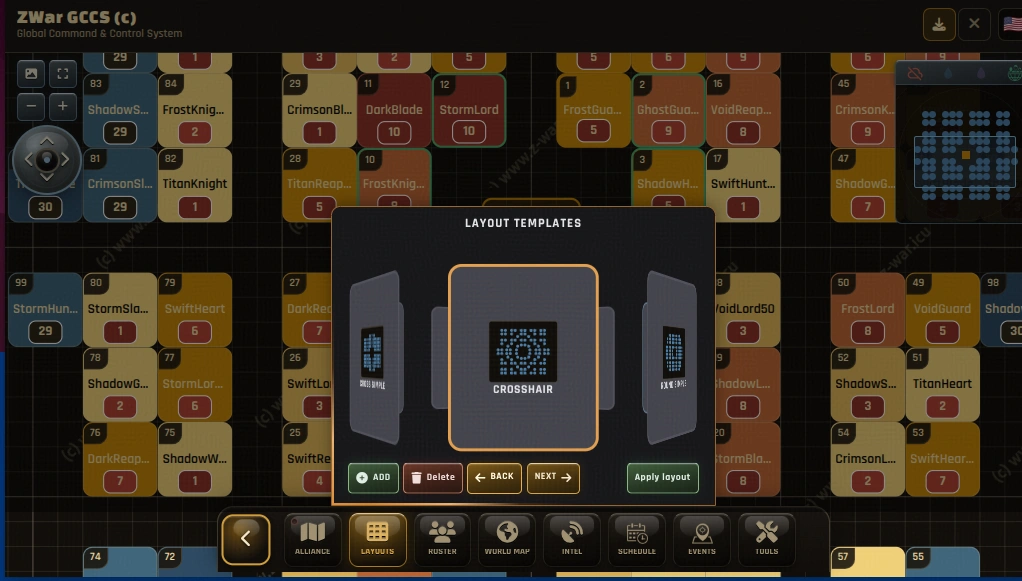
You can easily change layouts, load and save them without affecting your loaded roster of players. Simply tap layouts, scroll the carousel for your chosen layout, and tap/click. Done. If you make any change be sure to save them! Data is stored locally and only includes player info (so nothing sensitive). The cloud save options are end- to end encrypted for data safety in any case. Save your codes as you’ll need them later.
Have a play - this works on PCs and phones; there’s also a local installer option (add to home page) as this gives a better viewport on smaller devices.
Thanks to those that have tested and given feeback, special shoutout to LolaBunny #104 for the crosshair layout and constant bug reports. A big, big shoutout to Red #96 who orginally helped and implemented the very first Quadrant layouts. Also to Sparkles for implementing the “optimal” layout on Server #202. Thanks to the testers for their patience, feedback and support.
Territory Map
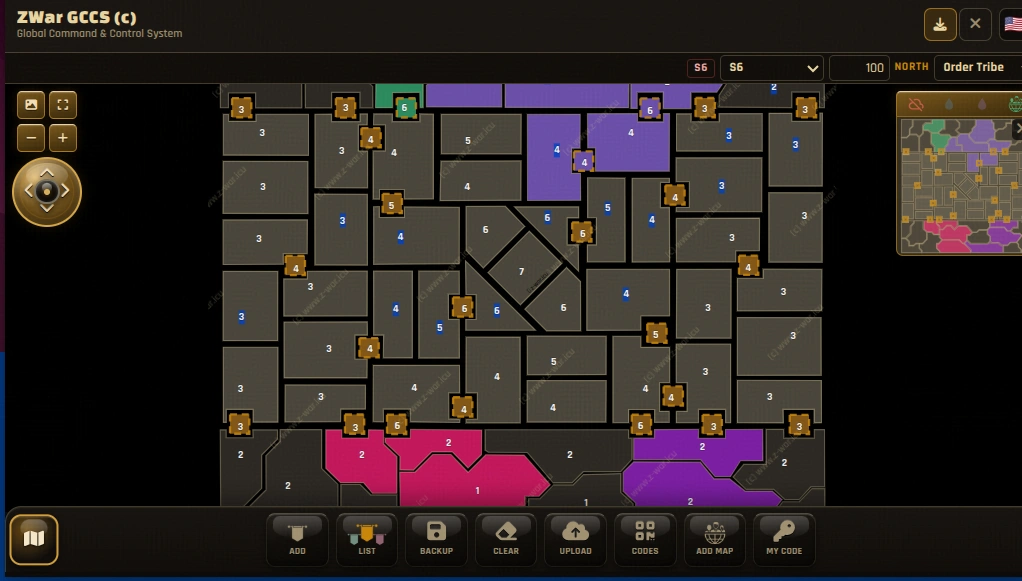
The source of many a heated DM or Discord channel - dividing up the map territory at the start of a Season. The Z War territory planner has several functions. We used to share a basic map and colour it in with Paint or GIMP. Now you have a tool to lay out your plan and share that plan with a share code with others. They can share theirs back and resolve conflicts. Well, actually, I can’t promise anything about the conflict resolution; at least this allows quick changes and sharing.
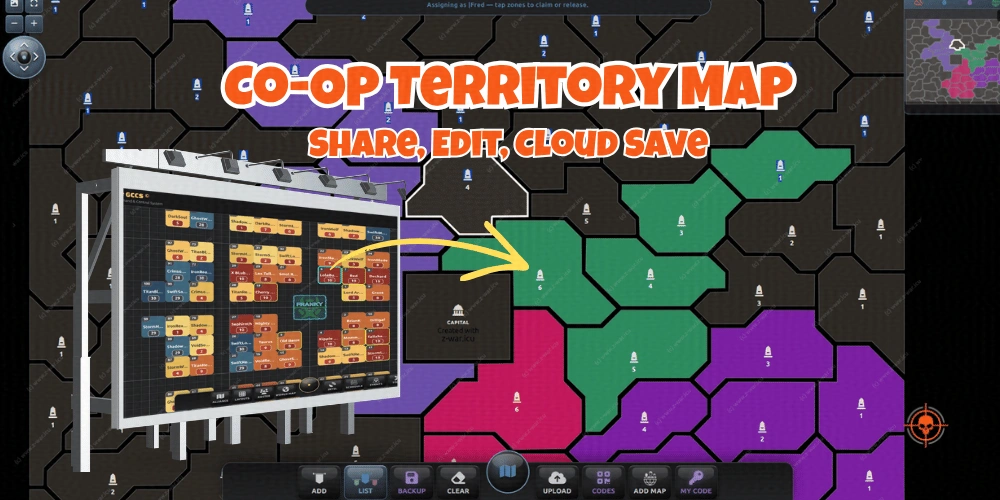
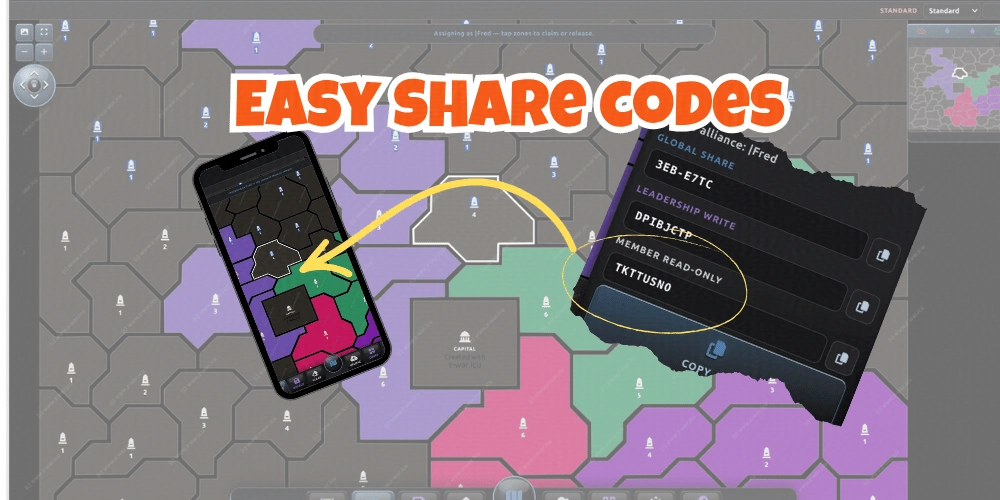
Plan the hive layout, plan your season territory map. The tool has a built-in full-screenshot feature so you can share the image to your WhatsApp, Signal or Telegram chats. You can share the code with alliance members and then can enter it into the app on phones or PCs for a read-only view. There are write codes for R5 and R4s, read codes for members and a share code to collaborate with other leaders.
Season 5 Map
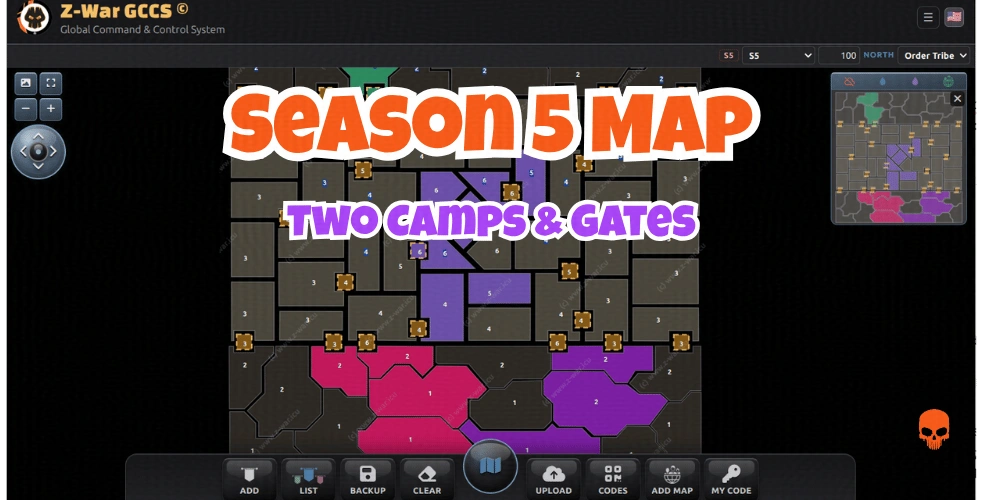
Season 5 Origin Lands introduces a new style map for the first time. The Z War tool has uniquely drawn both Season 5 and 6 maps into the interactive editable tool. No other Dark War Survival tool does this. Season 5 introduces a unique battlefield with mixed states. You must collaborate to defend all the gates and win the temple battles.
There is a full season guide here: Season 5 Origin Lands Guide, which covers the new season Gate Wars, buildings, temples and artefacts. It’s worth taking the time to go through all this so you’re prepared. It’s a big change from previous seasons.
You’ll also need the Ruin Tasks and Artefacts Guide
Season 6 Map
Season 6 is a repeat of Season 5, with many of the same dynamics for Temples, Artefacts and some Temples. The portal concept is defunct. No more tile trails either. We still have things you recognise from Season 5, and the return of Trade Posts.
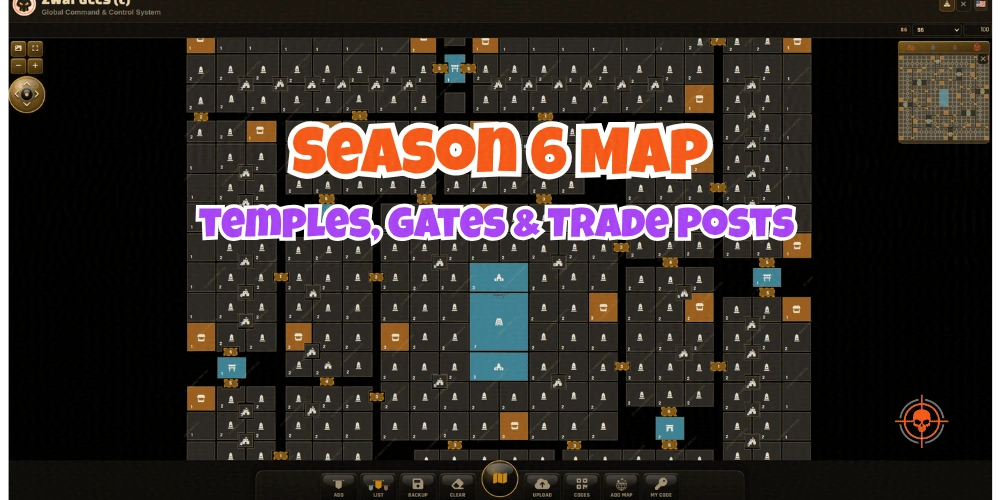
As with all the Z War tools, the maps are interactive, shareable, with built-in screenshot functions, etc.
There is a full guide to the Ruin Tasks, Artefacts and Museum upgrades and buffs here - Ruin Tasks & Artefacts Guide
More info coming soon…
Article originally appeared on Z-War.