.webp)
Dark War Survival - Free Interactive World and Season Maps
- 02 Apr, 2026
- Updated 11 Nov, 2026
Table of Contents
Dark War Survival - World & Season Maps
The Z-War Hive Manager & Season Map planner tool has both the “Standard” Dark War Survival world maps, with the capital at its centre, and, since S6 (correction: Season 5 – they deleted a season!), we have specific themed maps. Season 5 saw a map divided into 2 safe zones and a combat area for specific events. There is a minimap to help you navigate and visualise the whole map, especially when zoomed in. There are two cloud indicators on top of the world map – one for the standard map and the other for the season map.
Note: Don’t forget to add your server/state number – this links other state alliances.
On the left is a d-pad function, which helps with fine control and map movements on phones. There is touch functionality, but the d-pad will give you more control. You will also note the “full screen” option, which is great on phones to get a clear overall view. Additionally, there is an image exporter; this can be used in-game, on WhatsApp, etc. The image snapshots are in PNG format, so much smaller than a standard screenshot.
Standard Dark War Survival World Map
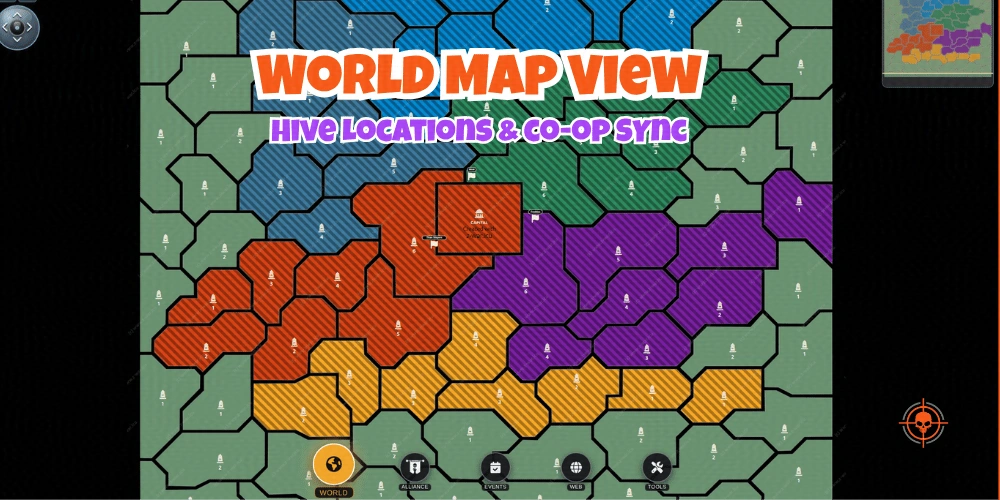
The map tool allows you to work separately or as a unified state with code sharing. Each alliance can set out its territory choices, and in the event of conflict, the usual Discord discussions take place, and you can reallocate chosen territories.
You can, of course, just plot where others go and where you plan to go. Once alliances have been entered and a colour chosen, that colour is flagged and cannot be chosen again. Each is limited to a max of 8; this assumes you’ve maxed the alliance research. Be sure not to exceed what you can actually take.
Editing The State Map
Once you have added your alliance and possibly the other alliances, you can now allocate territory and plan for gate battles.
World - List - You can claim your alliance with the My Alliance tag, add hive locations of others, and edit each alliance territory. The “Loc” function is the alliance’s Franky location if you’ve used a State Share code from another alliance. If not, just add the coords manually.
Use the “Access” option to add any State codes shared with you to request syncs from other alliances.
Auto option allows you to select how often you share your territory plan and how often you can sync info. It’s done like this, as constant syncs can eat up a phone data plan or battery.
Click the Edit button, and you can now click territory zones and assign them. Each zone assumes the colour allocated to the alliance.
Dark War Season 5 & 6 Maps
The Free interactive Season Maps are unique to the Z-War tool. New season maps will be added if they differ from the standard maps; eg Season 5 was a radical departure from the usual layouts. This is available within the tool, and Season 7 will be added shortly.
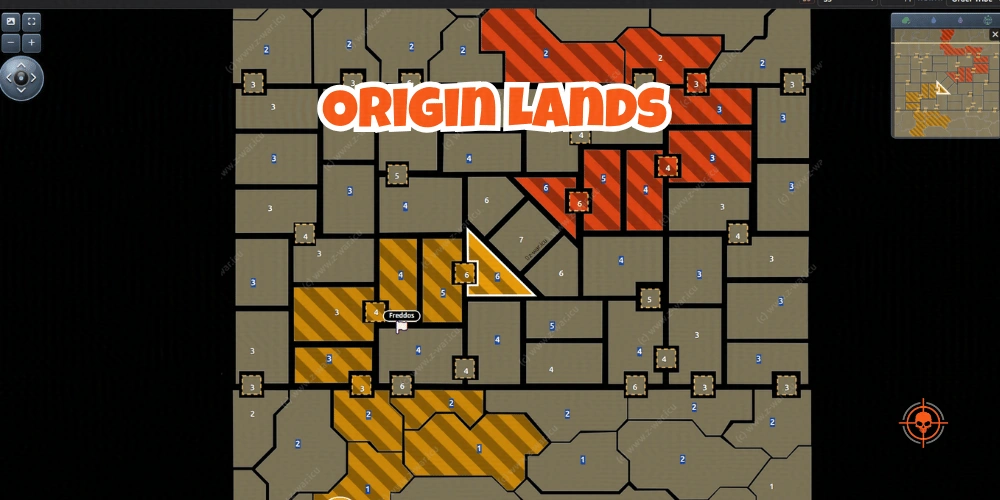
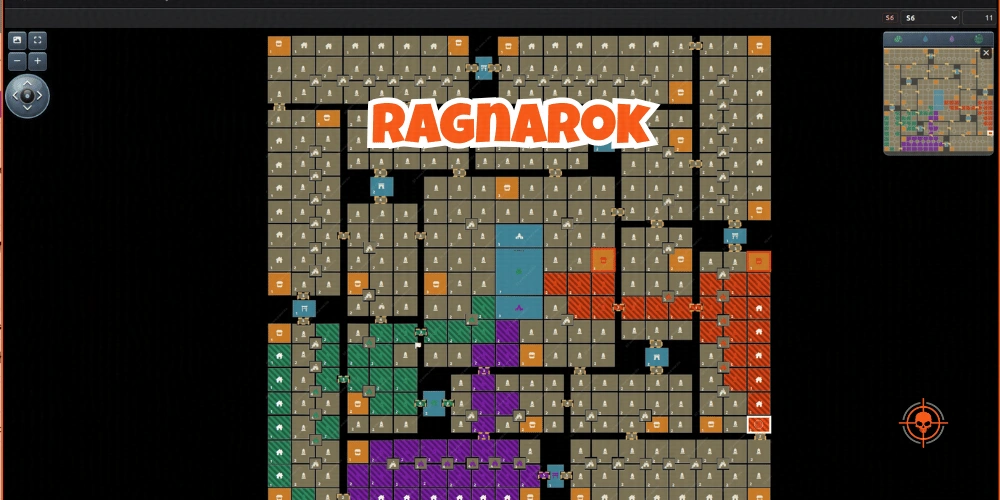
The Season 5 & 6 maps have options that aren’t found on the normal maps. This is mainly the gate’s features and the allocation to the “season alliance”, Order Tribe and Vengeance Unions (S5 Map). This is important as territory rules changed for Season 5, so that any territory captured by an alliance ally acts as a connector to the adjacent territory for any fellow alliance. This has some interesting tactical aspects to consider. Also note that capturing gates gives the holder access to the adjacent territory – but not porting, which remains in the event windows till…yes, Enemy Buster returns after a few weeks. More on the Season 6 guide.
Territory Planner: Getting Started
To get started using the maps, you’ll need to add at least your own alliance, add a name and choose a colour. Once the colour is chosen, it’s locked on your map and tagged. There is also a slot/rank number, but it doesn’t really do anything; it’s just a cue.
You can manually add the other alliances, or you can all collaborate, create your agreed territory plan and share those codes.
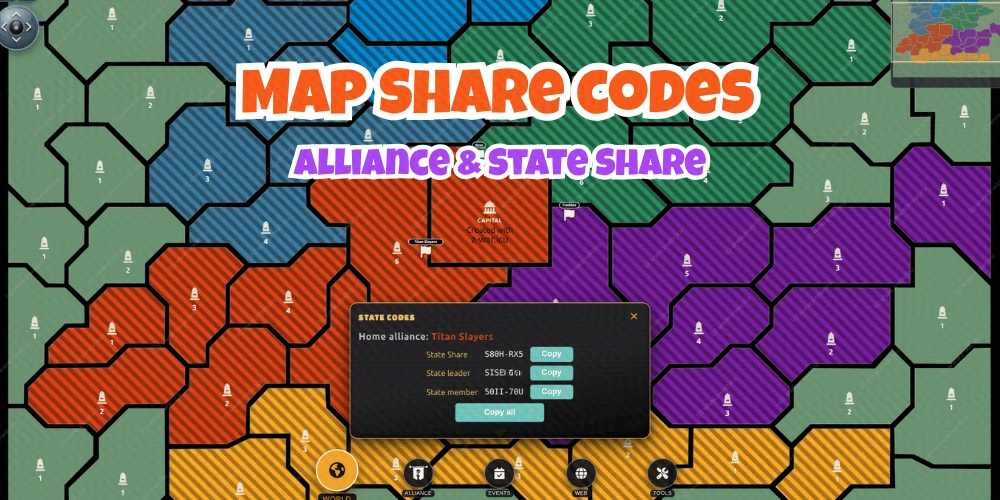
- Sync - creates an encrypted snapshot
- Codes – these are your locally stored access codes for sharing
- State Share – pass these to other R5/R4s to add your alliance to their maps
- State Leader - gives your R5/R4s access to make edits - upload after changes - share new codes.
- State Member – read access to members – but the plan is to make web pages available for this.
Summary
These tools work best where states are unified and are able to work together; of course, there will no doubt be the usual disputes, but this makes it easier than sending images back and forth on Discord, Signal, Telegram and WhatsApp… IFYKYK!
As ever, if you have feedback, bug reports, issues or suggestions, join the Z War Discord and help develop and improve the tool
As with all the Z War tools, they are FREE to use; the maps are simple to use, work on all devices, are interactive, shareable, secure, with built-in screenshot functions, etc. Over 2,500 Alliance sync calls are made every week, and over 200,000 total requests are made for the tools, Discord apps and web guides. Thank you for your support.
Article originally appeared on Z-War.
.webp)