.png)
Import the DWS Player Roster The Easy Way!
- 10 Jul, 2026
It doesn’t matter if you’re using Z-War or making your own Google Sheets list; this OCR tool will scan your screenshots, validate the output (hopefully!) and give you a text file with player names & CP levels. This can be imported into the Z-War Dark War Survival app and/or inserted into Excel or Google Sheets. It cannot read tower levels, as there are no easy screenshots that include them, so it’s still a manual process.
Dark War Survival Player Roster Import
The Scan & Import process
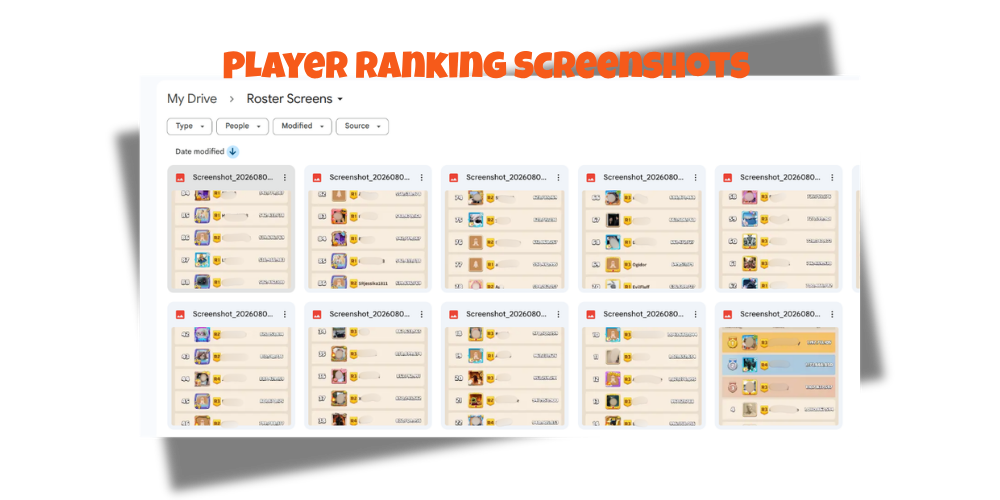
- Take “measured screenshots” – e.g., carefully ensure no duplicates – 7-8 players per shot
- Go to Roster Scanning Tool
- Select those images (max 15)
- Hit “Scan Roster”
- These are uploaded & scanned
- Nothing is stored ever. If the scan fails, you have to upload again.
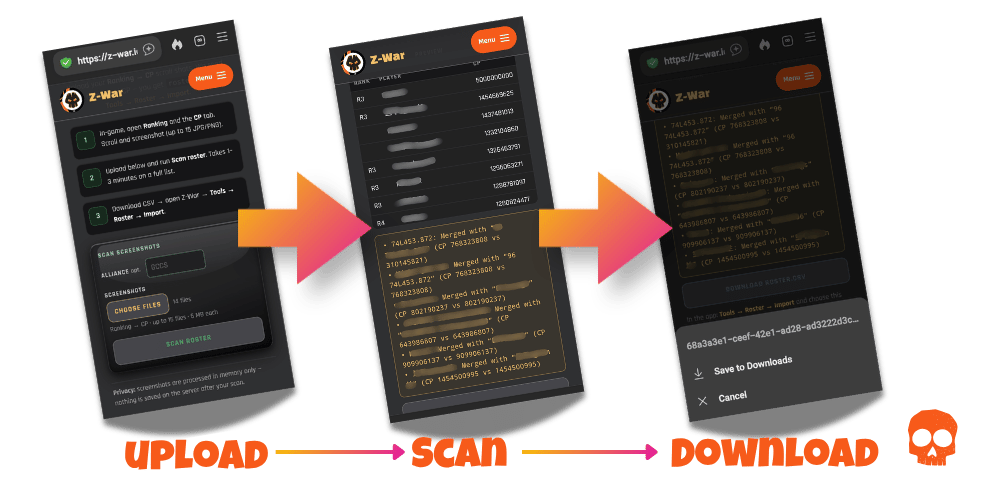
- Download the output .csv file (Comma-Separated Variable) text file
- You can import/paste this to Google Sheets, Excel, LibreOffice, etc. to edit further
- Go to the Z-War app, “Roster > Import”
- Select the file you downloaded or edited in Excel, etc
- The roster will be imported.
Truck Formation CP has now been added - there is a beta import - or edit directly.
Considerations
This import tool isn’t perfect – some languages will not work well. I have tried and tested various configurations, and this is about 95% successful-most of the time. You can either use Claude, ChatGPT or a pro OCR tool to improve on this. Check the output in a spreadsheet and make any changes needed. You can add the tower levels there or in the app. Doing this all on a phone is a bit clunky – but I am working on improving the usability.
Editing & Updates
Things change, players come and go, towers get upgraded, so how to manage that?
- Master Spreadsheet / Google Sheet - import the whole thing each time
- Edit in-game and backup locally.
- Edit in-game - and cloud save.
It’s sensible to keep a local copy and probably in your cloud storage of choice. It’s quite a bit of effort initially to get things set up. You don’t want ot have to repeat this due to a phone loss, server crash, etc.
Game Roster Screenshots
The key to covering the player ranking list is keeping track of the numbers - you can get 7 player listings per screenshot. Carefully take note of the last one of each shot, so there are no duplicates. This is important as the uploads are limited to 15. It’s also worth noting that whilst there’s no “real personal” data in player profiles, many do carry people’s faces. This is why the OCR tool only processes in “memory”; nothing is stored on the disk/server.
If you use AI, be aware that all the information ‘can’ go into a shared pool. Read their privacy documentation in full. Shown below is part of the Gemini AI privacy statement; note, you can switch off retention and delete data if you have any concerns.
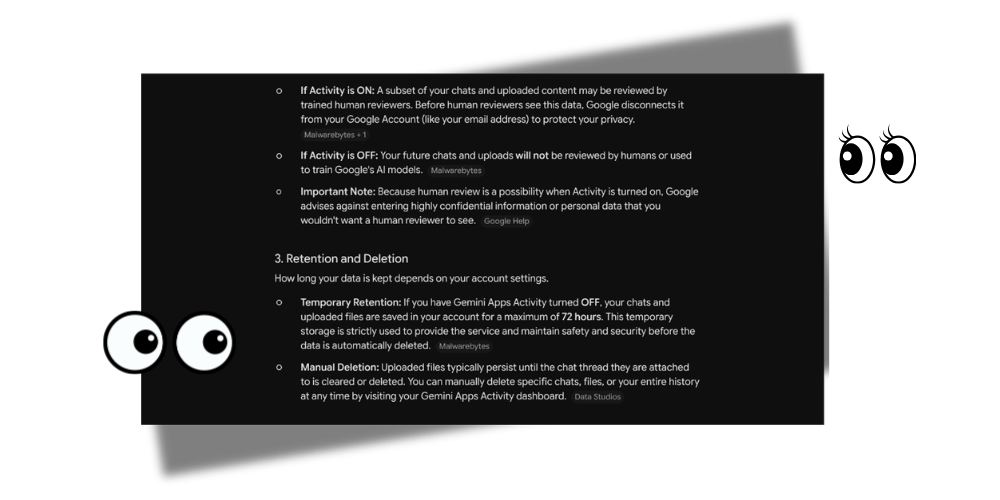
If you are worried about privacy of images, check the privacy statements and settings. You can ask the AI to tell you how to change things and about its privacy and retentions policies
Once you have edited the roster and completed all your changes, then you need to upload to the app. This usually goes smoothly; there are robust adaptive import formulas that should track your headers and align the data correctly for the app to use.
If for some reason it fails, use
- Player Name
- CP
- Tower Level 1-30, i1,i2, i3 up to i10
- F1, F2, F3, F4.
NEVER include emails, player IDs, or any identifiable personal data.
Yes, it’s end-to-end encrypted; yes, only you have the access key; yes, the upload path is SSL encrypted as well, and yes, the host-to-source is also SSL encrypted. If the data isn’t there, it can’t be accessed or leaked, even if the security is breached.
Data on Your Device
The app uses your device’s browser localStorage function to hold your data - what’s that?
The
localStorageAPI is a web storage mechanism in JavaScript that allows applications to save key-value data directly within a user’s browser without an expiration date. Unlike session storage, which clears entirely when the tab or window is closed, data saved inlocalStoragepersists across browser sessions and device reboots, making it highly useful for saving client-side user preferences, UI states, or lightweight application data. This storage is strictly sandboxed to the specific origin (the exact domain and protocol) that created it, typically provides a capacity limit of around 5MB per domain, and stores all keys and values synchronously as strings.
This is important to understand even at a basic level; not uploading personal data is “best practice”; understanding how the data is handled and how it’s stored is reassurance and transparency. Nothing is held on the app server unless you take a snapshot/cloud code generation. Even then, it’s encrypted, and only you have the key to unlock it.
Tools & Backups
There are a variety of backup options in the Tools tab: cloud save (for online storage), and backup to device, which stores a file locally in a secure device area. The Map load and save is to share the file if you prefer or want to edit it manually.
Backup
There are local file saves for the full app (eg roster, hive & territory maps, BGB) , plus file saves for Roster, map or BGB separately. These options are legacy options from when the app wasn’t public - use them if you like or just use the Cloud sharing feature.
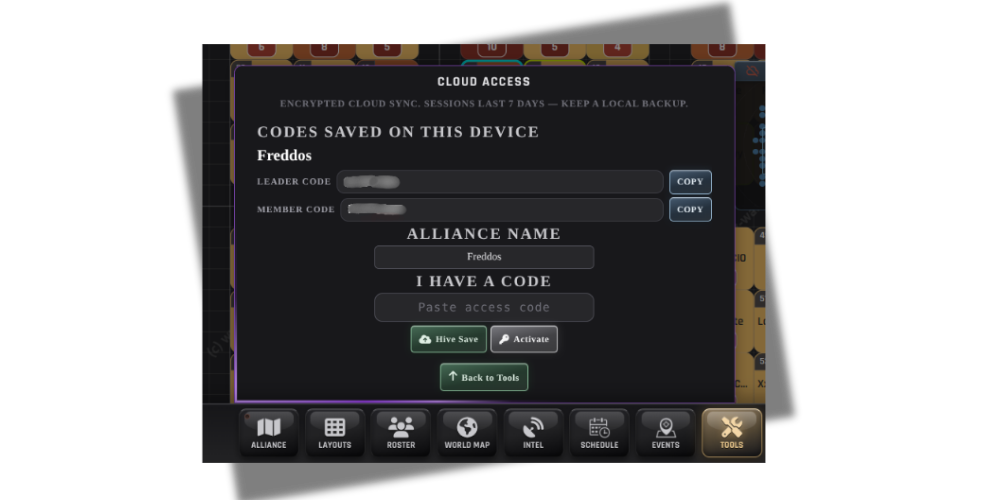
Cloud Save/Share
The app can save in the cloud using E2EE (end-to-end encryption); a code is generated and saved on your local device. This is used to encrypt your roster, BGB teams, territory, etc.
Two Codes are created; one is a “leader code” for your R5/R4 team. This has write permissions so anyone can edit it. The second code is a read code - or member code. This allows them to view the roster, hive layout, etc.